
A WordPress Syntax Error can make your website inaccessible without warning. One moment your site is working perfectly, and the next, you’re greeted with a message mentioning an “unexpected token,” “unexpected end of file,” or another PHP syntax issue.
If this happened after editing your theme, adding custom code, or updating a plugin, don’t panic. In most cases, a syntax error can be fixed by correcting or removing the faulty code.
This guide explains exactly what a WordPress syntax error is, why it happens, and how to fix it, even if you’ve never edited a PHP file before.
Quick Fix to WordPress Syntax Error
If you’re in a hurry, follow these steps:
- Read the complete syntax error message.
- Identify the file and line number mentioned in the error.
- Open that file using File Manager or FTP.
- Undo your most recent code changes.
- Save the file and refresh your website.
If the error disappears, you’ve successfully fixed the issue. If not, continue with the detailed troubleshooting steps below.
What You’ll Learn
In this guide, you’ll learn:
- What a WordPress syntax error is.
- The difference between a syntax error and a parse error.
- Common causes of syntax errors.
- How to identify the affected file.
- How to safely fix PHP syntax mistakes.
- How to prevent syntax errors in the future.
What Is a WordPress Syntax Error?
A WordPress syntax error occurs when PHP encounters code that doesn’t follow the correct programming rules (called “syntax”). Think of syntax like grammar in a language.
If you write a sentence without punctuation or with words in the wrong order, it can become difficult or impossible to understand. PHP works the same way.
Every line of PHP code must follow specific rules. If one of those rules is broken, PHP stops processing the file and displays a syntax error.
Because WordPress relies on PHP to generate every page, even a small mistake can prevent your website from loading.
Syntax Error vs. Parse Error
Many people use these terms interchangeably, but they’re closely related rather than identical.
A syntax error is the mistake in the code, for example, a missing semicolon or an unmatched brace.
A parse error is the message PHP displays when it encounters that syntax error while reading the file.
In practice, you’ll often see messages that begin with:
Parse error: syntax error...This means PHP was parsing (reading) the file and found invalid syntax.
If you’d like a more detailed explanation, see our guide on How to Fix a WordPress Parse Error.
What Causes a WordPress Syntax Error?
Some of the most common causes include:
- Missing semicolons (
;) - Missing or extra quotation marks
- Unmatched parentheses
() - Missing curly braces
{} - Incorrectly copied code snippets
- Editing
functions.php - Editing
wp-config.php - Plugin updates with incompatible code
- Theme customization mistakes
- PHP version incompatibilities
Fortunately, syntax errors are usually limited to a single file, making them easier to troubleshoot than many other WordPress issues.
Before You Start
Before editing any files:
- Create a backup if possible.
- Keep your hosting control panel open.
- Avoid making multiple code changes at once.
- Test your website after every change.
This helps you identify exactly which fix resolved the issue.
Solution 1: Read the Error Message Carefully
Why This Works
The syntax error message usually tells you where PHP detected the problem.
Although the actual mistake may be a few lines earlier, the message gives you an excellent starting point.
Step 1: Locate the Error Message
A typical error might look like this:
Parse error: syntax error, unexpected ')' in /home/account/public_html/wp-content/themes/mytheme/functions.php on line 163Pay close attention to:
- The filename
- The folder path
- The line number
- The type of unexpected character
Write this information down before making any changes.

What should happen?
You should now know which file requires your attention.
If the error doesn’t specify a file, proceed to Solution 2.
Solution 2: Open the Affected File
Why This Works
The error message tells you which file PHP couldn’t process.
Opening that file allows you to inspect the code around the reported line.
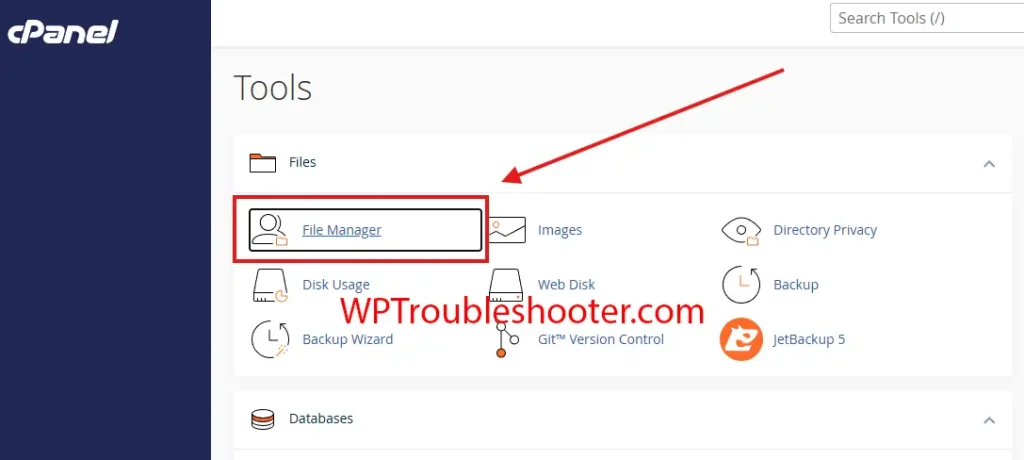
Step 1: Log In to Your Hosting Account
Access your hosting dashboard or Control Panel and open File Manager.
If your hosting provider doesn’t include File Manager, connect using an FTP client.
Step 2: Navigate to the File
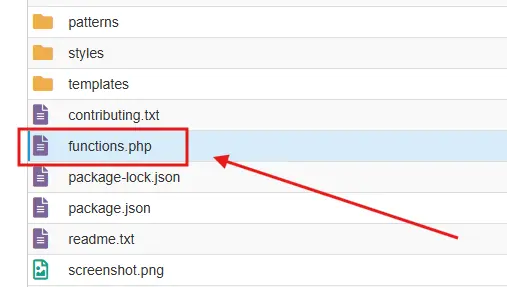
Follow the file path shown in the error message.
For example:
wp-content/themes/mytheme/functions.phpOpen each folder until you reach the file.
Right-click the file and choose Edit.
What should happen?
The file should open in the built-in editor.
Scroll to the line number mentioned in the error, but also inspect the surrounding lines, as the actual mistake may appear slightly earlier.
Solution 3: Check for Common Syntax Mistakes
Why This Works
Most syntax errors are caused by a handful of simple mistakes.
Checking for these common issues often resolves the problem quickly.
Look for:
- Missing semicolons
- Missing quotation marks
- Missing curly braces
- Extra curly braces
- Missing parentheses
- Extra commas
- Unclosed PHP statements
For example, this code is incorrect:
echo "Welcome to WP Troubleshooter"Correct version:
echo "Welcome to WP Troubleshooter";Another example:
Incorrect:
if ( is_user_logged_in() ) {
    echo "Hello";
Correct:
if ( is_user_logged_in() ) {
    echo "Hello";
}
What should happen?
After correcting the mistake, save the file and refresh your website. If the syntax error disappears, the issue has been resolved. If the error remains or changes to a different line, continue with the next solution.
Solution 4: Undo Your Most Recent Code Changes
Why This Works
Most WordPress syntax errors appear immediately after a code change.
For example, you may have:
- Added a code snippet to
functions.php - Edited
wp-config.php - Modified a plugin file
- Customized your theme
- Followed an online tutorial
- Pasted code from a forum
If the error started immediately after one of these changes, restoring the previous version of the file is often the quickest solution.
Step 1: Think Back to Your Last Change
Ask yourself these questions:
- What was I doing just before the error appeared?
- Which file did I edit?
- Did I install or update a plugin?
- Did I copy code from a website?
- Did I edit my theme?
If you remember the last change you made, start there.
Support Engineer Tip
If you’re unsure, don’t make random changes to multiple files. Work through one file at a time and test your website after each change.
Step 2: Remove or Correct the New Code
Open the file you recently edited.
If you pasted a custom code snippet:
- Remove it completely, or
- Carefully compare it with the original source to look for typing mistakes.
Even a single missing character can cause PHP to stop working.
For example, this code contains a missing closing parenthesis:
if ( is_admin( {
    echo "Welcome";
}
Correct version:
if ( is_admin() ) {
    echo "Welcome";
}
Save the file and refresh your website.
What should happen?
If the new code caused the syntax error, your website should load normally again.
If not, continue to the next solution.
Solution 5: Restore the Original File
Why This Works
If you’ve made several edits and can’t identify the mistake, restoring the original file is often faster than trying to fix each line individually.
Option 1: Restore From a Backup
If you created a backup before editing:
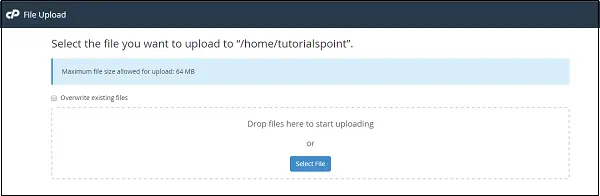
- Locate the original file.
- Upload it using File Manager or FTP.
- Replace the edited version.
Option 2: Download a Fresh Copy
If the problem is inside a WordPress core file, plugin, or theme:
- Download a fresh copy from the official source.
- Replace only the affected files.
- Avoid overwriting your
wp-content/uploadsfolder or database.
What should happen?
If the file became corrupted or was edited incorrectly, replacing it should remove the syntax error.
Solution 6: Check for PHP Version Compatibility
Why This Works
Not every hosting provider runs the latest PHP version. If a plugin or theme uses newer PHP syntax than your server supports, PHP may report a syntax error even though the code is technically correct.
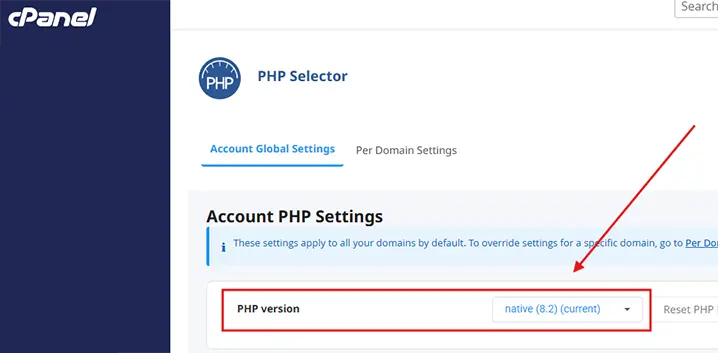
Step 1: Check Your PHP Version
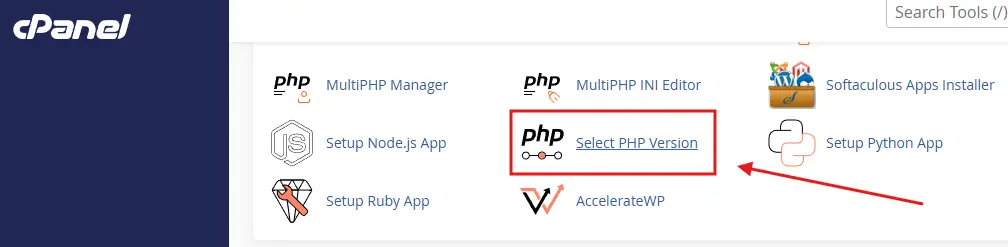
Log in to your hosting control panel.
Look for:
- PHP Version
- PHP Selector
- MultiPHP Manager
- PHP Configuration
Write down your current PHP version.
Step 2: Compare the Requirements
Visit the documentation for the plugin or theme you’re using.
Check the minimum PHP version required.
For example:
- Plugins requires at least PHP 8.1
- Your server is running PHP 7.4
This mismatch can produce syntax errors.
Step 3: Update PHP (If Supported)
If your hosting provider recommends upgrading:
- Create a full backup.
- Change to the recommended PHP version.
- Save the settings.
- Test your website carefully.
What should happen?
If the issue was caused by an outdated PHP version, your website should now load correctly.
Important: Never change your PHP version without confirming that your themes and plugins support it.
Solution 7: Enable WordPress Debug Mode
Why This Works
Sometimes a syntax error hides additional problems.
Enabling Debug Mode creates detailed error logs that make troubleshooting much easier.
Follow our complete guide:
How to Enable WordPress Debug Mode
Once enabled, WordPress records errors in the debug.log file, helping you identify exactly where PHP is failing.
Solution 8: Disable the Faulty Plugin or Theme
If the syntax error began immediately after installing or updating a plugin or theme, temporarily disabling it can confirm the cause.
Disable a Plugin
Using File Manager, navigate to:
wp-content/pluginsRename the plugin folder.
Example:
seo-pluginto
seo-plugin-disabled
WordPress won’t be able to load the plugin, effectively disabling it.
Disable a Theme
Navigate to:
wp-content/themesRename your active theme folder.
If a default WordPress theme (such as Twenty Twenty-Five) is installed, WordPress will usually switch to it automatically.
What should happen?
If your website loads after disabling the plugin or theme, you’ve identified the source of the syntax error.
Common Syntax Error Messages Explained
Understanding the wording of the error can help you fix it more quickly.
| Error Message | What It Usually Means |
|---|---|
unexpected ';' | A semicolon is missing or appears where it shouldn’t. |
unexpected ')' | Parentheses don’t match correctly. |
unexpected '}' | There’s an extra closing brace or a missing opening brace. |
unexpected end of file | A function, loop, or conditional wasn’t properly closed. |
unexpected T_STRING | PHP found text where it expected different syntax, often due to missing punctuation or quotes. |
unexpected T_VARIABLE | A variable appears in an invalid location, or previous syntax is incomplete. |
Remember, PHP often reports where it noticed the problem, not necessarily where the mistake began. Always inspect several lines before the reported line number.
Common Mistakes to Avoid
Many beginners accidentally make troubleshooting more difficult.
Avoid these mistakes:
- Editing multiple files at the same time.
- Ignoring the filename shown in the error.
- Using Microsoft Word or another word processor to edit PHP files.
- Copying code from outdated tutorials.
- Forgetting to back up your files.
- Leaving partially tested code in production.
How to Prevent WordPress Syntax Errors
You can reduce the chance of future syntax errors by following these best practices:
- Create a backup before editing code.
- Use a staging site to test changes first.
- Use a code editor with PHP syntax highlighting.
- Copy code only from trusted sources.
- Update WordPress, plugins, and themes regularly.
- Verify PHP compatibility before installing new software.
- Make one change at a time and test immediately.
These habits make troubleshooting much easier if something goes wrong.
Troubleshooting Checklist
Before moving on, make sure you’ve completed each of these steps:
☐ Read the full syntax error message.
☐ Identified the affected file.
☐ Checked the reported line and nearby code.
☐ Corrected common syntax mistakes.
☐ Undone your most recent changes.
☐ Restored the original file if necessary.
☐ Verified your PHP version.
☐ Disabled the affected plugin or theme for testing.
☐ Enabled “Debug Mode” if more information were needed.
☐ Contacted your hosting provider if the problem still exists.
Frequently Asked Questions
What is a WordPress syntax error?
A syntax error occurs when PHP finds code that doesn’t follow the language’s rules. Because WordPress depends on PHP, even a small mistake can prevent your website from loading.
Is a syntax error the same as a parse error?
They’re closely related.
A syntax error is the actual mistake in the code, while a parse error is the message PHP displays when it encounters that syntax mistake during processing.
Can a plugin cause a syntax error?
Yes. If a plugin contains invalid PHP code or requires a newer PHP version than your server provides, it can trigger a syntax error.
Can I fix a syntax error without FTP?
Yes. Most hosting providers include a File Manager in their control panel, allowing you to edit files directly from your browser.
Will fixing a syntax error delete my website?
No. Correcting a syntax error only fixes the affected PHP file. Your posts, pages, images, and database remain unchanged.
Conclusion
Although a WordPress syntax error can seem intimidating, it’s usually one of the easier WordPress problems to diagnose because PHP tells you which file needs attention.
Start by reading the error message carefully, then inspect the reported file, correct any syntax mistakes, restore the original code if necessary, and verify your PHP version if the issue continues.
Take your time, make one change at a time, and test your website after each step. A careful approach reduces the risk of introducing new problems while troubleshooting.
If you’ve completed every step in this guide and your website still won’t load, contact your hosting provider with the exact error message and explain which troubleshooting steps you’ve already tried. That information will help them investigate the issue more efficiently.
Related Guides
Continue troubleshooting with these guides:
- How to Fix the WordPress Critical Error
- How to Fix Error Establishing Database Connection in WordPress
- How to Fix the WordPress 500 Internal Server Error
- How to Fix WordPress Stuck in Maintenance Mode
The more familiar you become with WordPress troubleshooting, the faster you’ll be able to diagnose and resolve future issues with confidence.