
Is your WordPress Stuck in Maintenance Mode? Learn how to remove the .maintenance file, recover from failed updates, and prevent the issue from happening again with this beginner-friendly guide.
Quick Fix
If your WordPress website is displaying the message:
“Briefly unavailable for scheduled maintenance. Check back in a minute.”
The quickest solution is usually to delete the .maintenance file from your WordPress installation folder.
Here’s the short version:
- Log in to your hosting account.
- Open File Manager (or connect using FTP).
- Navigate to your WordPress installation folder (usually public_html).
- Enable Show Hidden Files if you don’t see the file.
- Delete the
.maintenancefile. - Refresh your website.
If your website loads normally, the issue is resolved.
If the message is still displayed, or if you can’t find the file, continue with the detailed guide below.
What You’ll Learn
By the end of this guide, you’ll know the following:
- What WordPress maintenance mode is.
- Why websites sometimes get stuck in maintenance mode.
- How to remove the
.maintenancefile safely. - What to do if the file isn’t there.
- How to recover from a failed WordPress update.
- How to prevent this problem from happening again.
What Is WordPress Maintenance Mode?
Whenever WordPress updates its core files, themes, or plugins, it temporarily places your website into maintenance mode.
During this process, visitors may see a message like the following:
Briefly unavailable for scheduled maintenance. Check back in a minute.
This is completely normal and usually lasts only a few seconds.
Behind the scenes, WordPress creates a temporary file named .maintenance in your site’s root directory. This file tells WordPress to display the maintenance message while the update is in progress.
Once the update finishes successfully, WordPress automatically deletes the file, and your website returns to normal.
The problem occurs when the update is interrupted before WordPress can remove the file.
As a result, your website continues to think an update is still in progress, even though it has already stopped.
What Causes WordPress to Get Stuck in Maintenance Mode?
Several situations can interrupt an update:
- Your internet connection drops during the update.
- The browser window is closed too early.
- The hosting server times out.
- A plugin update fails.
- A theme update becomes corrupted.
- The server runs out of available PHP memory.
- A plugin conflict interrupts the update process.
Knowing what caused the issue can help you prevent it in the future, but fortunately, the solution is usually straightforward.
Before You Start
Before making any changes:
- If your hosting provider offers automatic backups, verify that you have a recent backup available.
- Keep your hosting control panel open in another browser tab.
- If you’re using FTP software, make sure you have your login credentials ready.
- Read through each solution before making changes.
Support Engineer Note:
Deleting the .maintenance file does not delete your posts, pages, media, plugins, or themes. You’re only removing the temporary file that tells WordPress to stay in maintenance mode.
Solution 1: Delete the .maintenance File (Recommended)
Why This Works
When an update starts, WordPress creates the .maintenance file. If the update is interrupted, the file may never be removed automatically.
Deleting it tells WordPress that the update has finished, allowing your website to load normally again. It will unstuck WP maintenance mode.
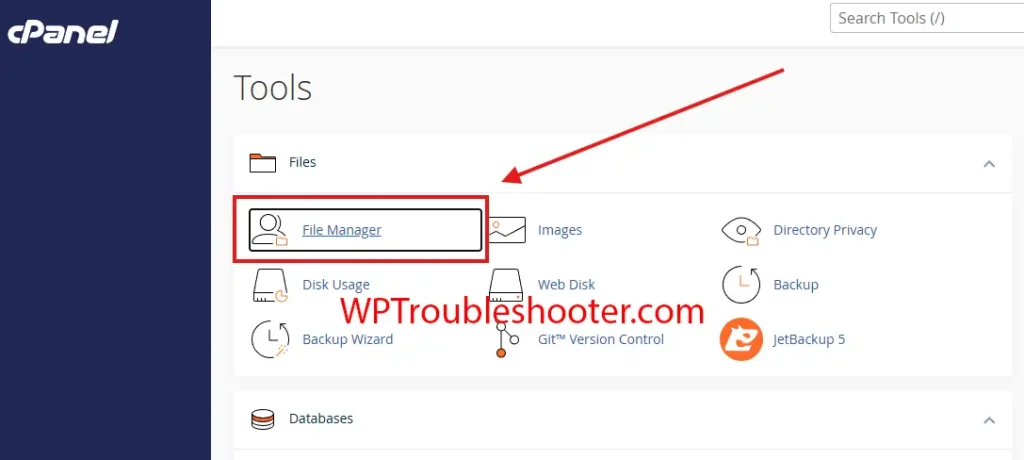
Step 1: Log In to Your Hosting Account
Open your hosting provider’s dashboard.
Depending on your provider, this could be
- cPanel
- Hostinger hPanel
- Plesk
- DirectAdmin
- A custom hosting dashboard
Look for File Manager.
What should happen?
You should now be able to browse your website’s files.
If you can’t find File Manager, your hosting provider may require you to connect using FTP instead.
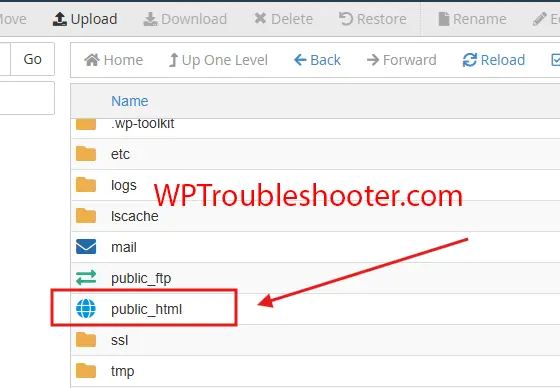
Step 2: Open Your WordPress Installation Folder
For most websites, WordPress is installed inside the following:
public_htmlIf your website is installed in a subfolder (for example: public_html/blog), open that folder instead.
What should happen?
You should now see folders such as the following:
- wp-admin
- wp-content
- wp-includes
along with files like:
- wp-config.php
- index.php
If you don’t see these files, you’re probably in the wrong directory. Navigate until you find your WordPress installation.
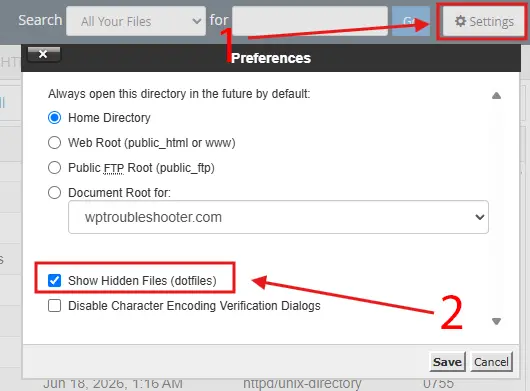
Step 3: Show Hidden Files
The .maintenance file begins with a period (.), which means many file managers hide it by default.
Look for an option such as the following:
- Settings
- Preferences
- Show Hidden Files
- Show Dotfiles
Enable it.
What should happen?
After refreshing the file list, hidden files including .maintenance should become visible.
Step 4: Delete the .maintenance File
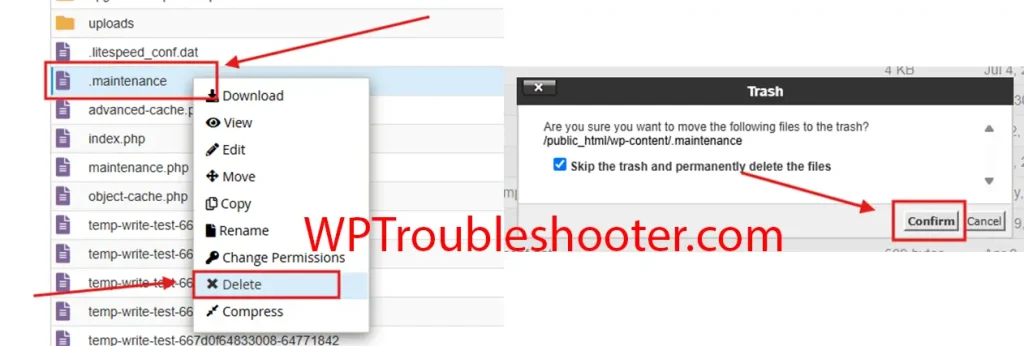
Locate the file named:
.maintenanceRight-click it and choose Delete.
Some hosting providers may move it to a trash folder instead of deleting it permanently.
That’s perfectly fine.
What should happen?
Refresh your website in a new browser tab.
If the maintenance message disappears, you’ve fixed the problem.
If your website is still stuck, or if the file wasn’t there, don’t worry. Continue to the next solution.
Solution 2: What If the .maintenance file missing?
Sometimes you’ll search your WordPress installation folder and won’t find the .maintenance file at all. This can be confusing because your website is still showing the maintenance message.
Don’t worry, this doesn’t necessarily mean you’ve done something wrong. There are several reasons why the file might not be visible:
- Hidden files are still disabled.
- You’re looking in the wrong WordPress installation folder.
- The file has already been removed, but another issue is preventing your website from loading.
- A failed plugin or theme update caused a different error.
Let’s check each possibility.
Step 1: Confirm You’re in the Correct WordPress Folder
The .maintenance file is stored in the root directory of your WordPress installation.
For most websites, that’s
public_htmlIf WordPress is installed in a subfolder such as
public_html/blogor
public_html/shopOpen that folder instead.
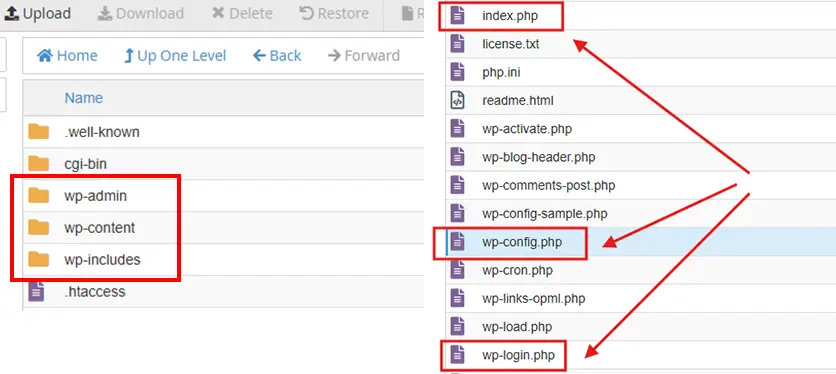
A quick way to verify you’re in the correct location is to look for these folders:
- wp-admin
- wp-content
- wp-includes
You should also see files like the following:
- wp-config.php
- index.php
- wp-login.php
What should happen?
Once you’re in the correct folder, refresh the file list. If the .maintenance file exists, it should now be visible.
If it still isn’t there, continue below.
Step 2: Complete the Interrupted Update
A failed update can leave WordPress in an inconsistent state even after the maintenance file has been removed.
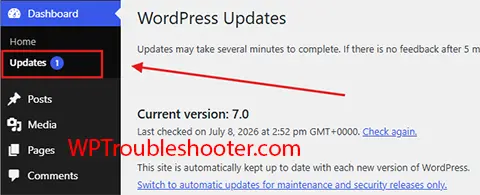
Log in to your WordPress dashboard if you have access to it.
Navigate to:
Dashboard → Updates
Check for any updates that show as incomplete.
Update them one at a time instead of updating many plugins simultaneously.
What should happen?
Each update should complete successfully.
If an update fails again, note which plugin or theme caused the problem.
Step 3: Identify a Problematic Plugin
Many maintenance mode problems happen because a plugin update fails.
If you can access the dashboard:
Go to:
Plugins → Installed Plugins
Look for:
- Recently updated plugins
- Plugins with update notices
- Plugins showing warning messages
Deactivate the most recently updated plugin and test your website.
If you can’t access the dashboard:
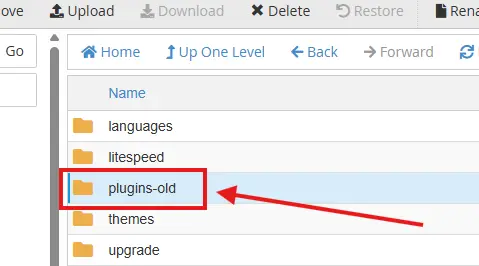
Rename the folder:
wp-content/pluginsto:
plugins-oldThis temporarily disables every plugin.
What should happen?
Refresh your website.
- If the site loads correctly, a plugin is likely causing the problem.
- Rename the folder back to
plugins. - Then reactivate plugins one at a time until you find the faulty one.
Support Engineer Note
Don’t leave the folder named
plugins-old. Rename it back topluginsafter testing, otherwise WordPress won’t detect your installed plugins.
Solution 3: Check for Theme Update Problems
Although less common than plugin issues, a failed theme update can also interrupt the update process.
If you recently updated your theme before the problem appeared, try switching to a default WordPress theme such as the following:
- Twenty Twenty-Five
- Twenty Twenty-Four
- Twenty Twenty-Three
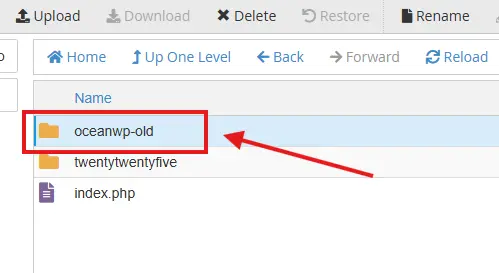
If you can’t access the dashboard, you can temporarily rename your active theme’s folder inside the following:
wp-content/themesWordPress will usually attempt to load an available default theme automatically.
What should happen?
If the website starts working after changing themes, your original theme may need to be updated or repaired.
Solution 4: Clear Your Website Cache
Sometimes the maintenance page has already been removed, but your browser or caching system continues showing the old version.
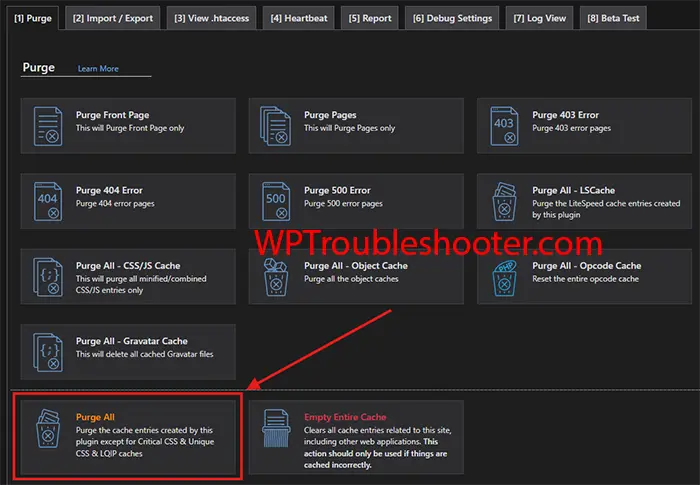
Clear:
- Your browser cache
- Your WordPress caching plugin (if applicable)
- Your hosting cache
- Your CDN cache (if you’re using one)
After clearing the cache, open your website in an Incognito / Private browsing window.
What should happen?
If cached content was the problem, the website should now load normally.
Solution 5: Check WordPress Recovery Mode
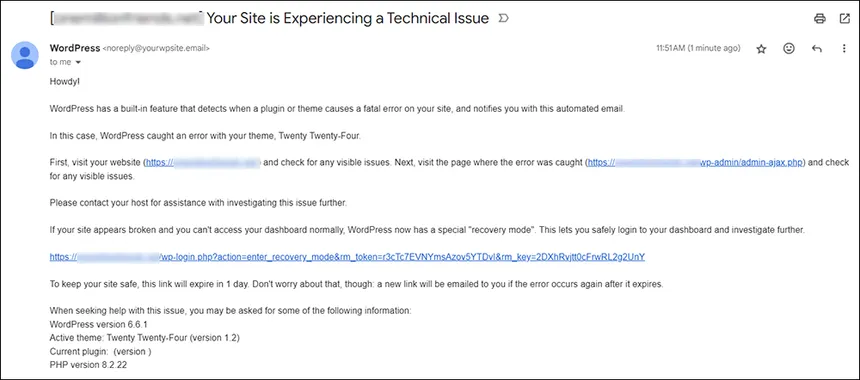
If the maintenance mode issue was caused by a plugin or theme fatal error, WordPress may have sent an email titled something similar to the following:
“Your Site is Experiencing a Technical Issue”
Open the email and follow the recovery link.
Recovery Mode lets you access the dashboard even when a plugin or theme is causing a fatal error.
From there, you can disable or update the faulty extension.
What should happen?
Once the problematic plugin or theme is fixed, your website should function normally again.
When Should You Contact Your Hosting Provider?
Most maintenance mode problems can be fixed using the steps above.
However, contact your hosting provider if:
- The update repeatedly fails.
- File Manager is inaccessible.
- FTP connections fail.
- Your website still won’t load after completing every solution.
- Server error logs indicate hosting-related issues.
- Your hosting account has reached resource limits.
When contacting support, mention:
- The maintenance mode message.
- That you’ve already checked for the
.maintenancefile. - Whether the issue started after updating WordPress, a plugin, or a theme.
Providing this information can help the support team diagnose the problem more quickly.
Common Mistakes to Avoid
Avoid these common beginner mistakes:
- Deleting the wrong files instead of only the
.maintenancefile. - Editing WordPress files without creating a backup.
- Updating many plugins at the same time.
- Closing the browser while updates are still running.
- Leaving plugins disabled after troubleshooting.
- Forgetting to clear caches before checking if the issue is resolved.
How to Prevent This Problem in the Future
Although maintenance mode issues are usually easy to fix, preventing them is even better.
Here are a few best practices:
- Create regular backups before updating WordPress.
- Update plugins one at a time instead of all at once.
- Avoid updating your website during periods of heavy traffic.
- Make sure your hosting account has enough available disk space.
- Keep your PHP version up to date if your hosting provider recommends it.
- Remove plugins and themes you no longer use.
- Test major updates on a staging website whenever possible.
Troubleshooting Checklist
Before moving on, make sure you’ve completed these steps:
☐ Checked the correct WordPress installation folder.
☐ Enabled hidden files in File Manager.
☐ Deleted the .maintenance file.
☐ Refreshed your website.
☐ Checked for incomplete WordPress updates.
☐ Disabled plugins for testing.
☐ Tested with a default WordPress theme.
☐ Cleared browser and website caches.
☐ Checked Recovery Mode.
☐ Contacted your hosting provider if the problem persists.
Frequently Asked Questions
Is it safe to delete the .maintenance file?
Yes. The file is temporary and is automatically created during updates. Deleting it simply tells WordPress that the update process has finished.
Will deleting the .maintenance file delete my website?
No. It doesn’t affect your posts, pages, plugins, themes, or database.
Why does my website keep getting stuck in maintenance mode?
Repeated maintenance mode problems usually indicate interrupted updates, plugin conflicts, insufficient server resources, or hosting-related issues.
I deleted the file, but my website still doesn’t work. What should I do?
Complete the remaining troubleshooting steps in this guide. If the issue persists, the problem may be a failed update, plugin conflict, theme issue, or server configuration problem.
Can I prevent maintenance mode completely?
No. WordPress uses maintenance mode whenever updates are installed. However, by keeping your website healthy and avoiding interrupted updates, you can reduce the chances of getting stuck in maintenance mode.
Related Guides
If you’re troubleshooting other WordPress problems, these guides may also help:
- How to Fix the WordPress Critical Error
- How to Fix WordPress 403 Forbidden Error
- How to Fix the WordPress White Screen of Death
- How to Fix Error Establishing Database Connection
- How to Fix the WordPress 500 Internal Server Error
- How to Fix the WordPress Memory Exhausted Error
- How to Fix WordPress 404 Error After Permalink Change
With the right troubleshooting process, most WordPress issues can be resolved without rebuilding your website from scratch.
Conclusion
Seeing your website stuck on the message “Briefly unavailable for scheduled maintenance. Check back in a minute.” can be alarming, especially if you’re new to WordPress.
Fortunately, in most cases the solution is simple: remove the temporary .maintenance file, complete any interrupted updates, and check for plugin or theme conflicts if the problem continues.
Work through each solution one at a time, testing your website after every step. This approach helps you identify the real cause without making unnecessary changes.
If none of the solutions resolve the issue, don’t hesitate to contact your hosting provider. By telling them exactly which troubleshooting steps you’ve already completed, they’ll be able to investigate more efficiently.