
Seeing the message “There has been a critical error on this website” can be alarming, especially if your WordPress site suddenly becomes inaccessible. Fortunately, this error is usually caused by a plugin conflict, theme issue, PHP error, or exhausted server resources.
In this guide, we’ll walk through the most effective ways to diagnose and fix the WordPress critical error so you can get your website back online quickly.
What Is the WordPress Critical Error?
The critical error message was introduced in WordPress 5.2 as a user-friendly replacement for the infamous white screen of death.
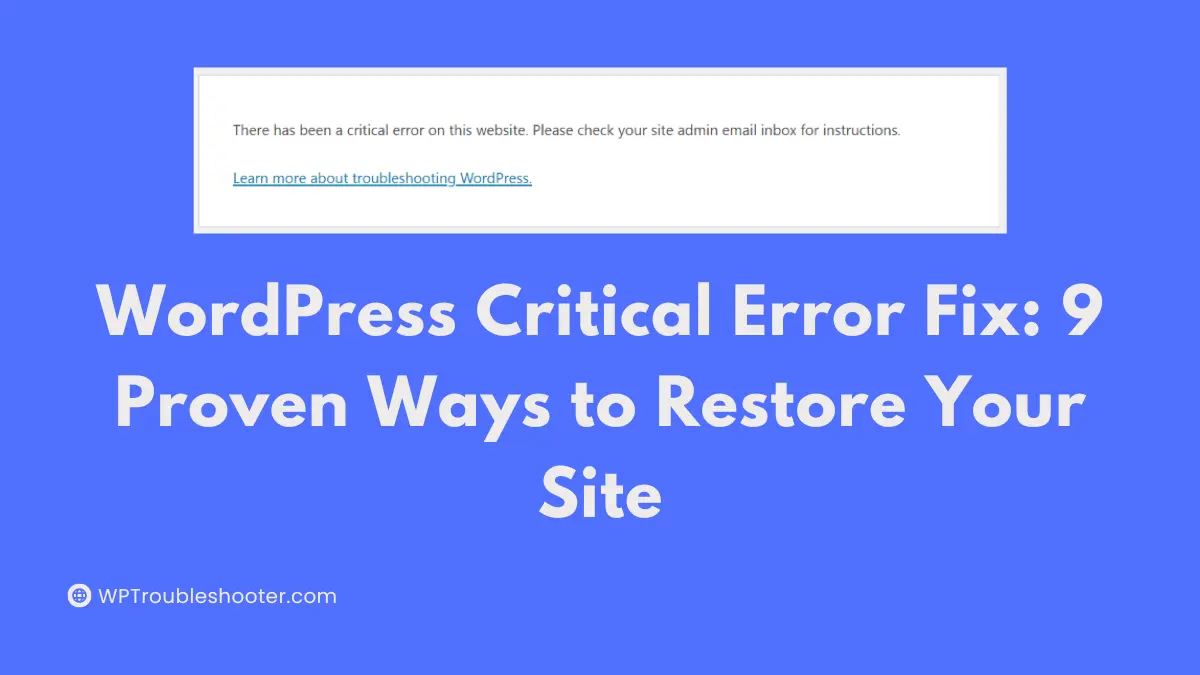
Instead of showing a blank page, WordPress now displays:
There has been a critical error on this website.

This error appears when PHP encounters a fatal issue that prevents WordPress from loading normally.
Common Causes of the WordPress Critical Error
The most common causes include:
- Faulty plugins
- Theme conflicts
- Corrupted WordPress files
- PHP memory exhaustion
- Unsupported PHP versions
- Coding errors in custom functions
- Failed WordPress updates
Before attempting fixes, create a backup if you still have access to your hosting control panel.
Fix 1: Check Your Recovery Mode Email
When WordPress detects a critical error, it often sends an automated email to the site administrator.
The email contains:
- The plugin or theme causing the issue
- A recovery mode login link
- Additional debugging information
Check the administrator email associated with your WordPress installation.
If you receive the email, follow the recovery link and disable the problematic plugin or theme.
Fix 2: Disable All Plugins
Plugin conflicts are one of the leading causes of critical errors.
If you cannot access the WordPress dashboard:
- Go to your cPanel or any other service you use; skip if not necessary.
- Open your hosting File Manager or FTP client.
- Navigate to:
wp-content- Rename:
pluginsto:
plugins-old- Reload your website.
If the website loads normally, a plugin is causing the problem.
Rename the folder back to plugins and reactivate plugins one by one until the error returns.
Fix 3: Switch to a Default Theme
A broken or incompatible theme can trigger fatal PHP errors.
Using File Manager:
Navigate to:
wp-content/themes/Rename your active theme folder.
WordPress will automatically attempt to activate a default theme such as Twenty Twenty-Five if available.
If the site loads successfully afterwards, your theme is responsible for the issue.
Fix 4: Enable WordPress Debug Mode
Debug mode reveals the exact PHP error causing the problem.
Open:
wp-config.phpFind:
define('WP_DEBUG', false);Replace it with:
define('WP_DEBUG', true);
define('WP_DEBUG_LOG', true);
define('WP_DEBUG_DISPLAY', false);
Save the file.
WordPress will generate a debug log inside:
wp-content/debug.logReview this file for detailed error information.
Fix 5: Increase PHP Memory Limit
Many critical errors occur because WordPress runs out of available memory.
Add the following line above:
/* That's all, stop editing! */inside wp-config.php:
define('WP_MEMORY_LIMIT', '256M');Save the file and test the site again.
Fix 6: Update PHP
Running outdated PHP versions often causes compatibility issues with modern plugins and themes.
Recommended versions:
- PHP 8.1
- PHP 8.2
- PHP 8.3
Check your hosting control panel and update PHP if necessary.
Always create a backup before changing PHP versions.
Fix 7: Reinstall WordPress Core Files
Corrupted core files can trigger fatal errors.
Download a fresh copy of WordPress.
Upload and replace:
/wp-admin/
/wp-includes/
Do not overwrite:
wp-content
wp-config.php
This process refreshes WordPress without affecting your content.
Fix 8: Check Custom Code
If the error started after editing:
- functions.php
- custom plugins
- code snippets
- child themes
Revert recent changes.
A single missing semicolon or incorrect function call can crash an entire site.
Review any custom code added shortly before the error appeared.
Fix 9: Review Server Error Logs
Hosting error logs often reveal the exact source of a critical error.
Look for:
- PHP Fatal Errors
- Memory Limit Errors
- Missing File Errors
- Deprecated Function Errors
Most hosting providers provide logs through cPanel, DirectAdmin, or their custom dashboard.
Frequently Asked Questions
Can a plugin cause a critical error in WordPress?
Yes. Faulty, outdated, or incompatible plugins are among the most common causes.
Will reinstalling WordPress delete my content?
No. Replacing core files will not affect posts, pages, media, or database content when performed correctly. Follow our instructions strictly so you don’t make any mistakes.
How do I know which plugin caused the error?
Enable debug mode or deactivate all plugins and reactivate them individually until the issue returns. It is the most effective way to find the error.
Can low hosting resources trigger this error?
Yes. Limited PHP memory, outdated PHP versions, or server misconfigurations can cause fatal errors. Always find the best web hosting services for your website.
Conclusion
The WordPress critical error is frustrating, but in most cases it can be fixed quickly by identifying plugin conflicts, theme issues, memory limitations, or PHP problems.
Start with the simplest solutions such as disabling plugins and switching themes. If those do not work, enable debugging and review server logs to pinpoint the exact cause.
With a systematic troubleshooting approach, most WordPress critical errors can be resolved without losing your website data. This article may also help you – Error Establishing Database Connection Fix.