
Have you suddenly seen a message like this on your WordPress website?
Parse error: syntax error, unexpected '}' in /home/username/public_html/wp-content/themes/mytheme/functions.php on line 245Or perhaps
Parse error: syntax error, unexpected end of file in wp-config.php on line 97If so, don’t panic.
Although a WordPress Parse Error can make your website or admin dashboard inaccessible, it’s one of the most straightforward WordPress errors to fix once you understand what the error message is telling you.
In this guide, you’ll learn exactly what a parse error is, what causes it, and how to fix it step by step, even if you’ve never edited a WordPress file before.
Note: The line number may be different based on your specific issue, but it’s the same problem you’re facing.
Quick Fix
If you’re in a hurry, here’s the fastest way to fix most WordPress parse errors:
- Read the error message carefully.
- Note the file path and line number mentioned in the error.
- Open that file using your hosting provider’s File Manager or FTP.
- Undo the most recent code changes.
- Save the file.
- Refresh your website.
If the error disappears, the problem is solved. If it doesn’t, continue with the detailed guide below.
What You’ll Learn
By the end of this guide, you’ll know:
- What a WordPress Parse Error is.
- Why PHP displays parse errors.
- How to read a parse error message.
- How to find the file causing the issue.
- How to repair common coding mistakes.
- How to restore your website if you can’t find the problem.
- How to avoid parse errors in the future.
What Is a WordPress Parse Error?
A parse error occurs when PHP, the programming language WordPress is built on, tries to read a file but encounters code it doesn’t understand.
Think of PHP as a translator.
Before WordPress can display your website, PHP reads every line of code. If it finds something unexpected, such as a missing semicolon or an extra bracket, it stops immediately.
Because PHP can’t continue, WordPress can’t load the page, and you see a Parse Error instead.
Unlike some WordPress issues that have many possible causes, a parse error almost always points to a mistake in a specific PHP file.
The good news is that the error message usually tells you exactly where to start looking.
Understanding the Error Message
Let’s look at an example:
Parse error: syntax error, unexpected '}' in /home/username/public_html/wp-content/themes/mytheme/functions.php on line 245This message contains three important clues:
1. The Type of Error
In this example:
unexpected '}'PHP found a closing curly brace (}) where it wasn’t expecting one.
2. The File
The error occurred in:
wp-content/themes/mytheme/functions.phpThis tells you which file needs to be checked.
3. The Line Number
The message ends with:
line 245This tells you where PHP noticed the problem.
Support Engineer Note
The actual mistake isn’t always on the exact line shown. Sometimes it’s a few lines above, such as a missing quotation mark or bracket that causes PHP to become confused later in the file.
What Causes a WordPress Parse Error?
The most common causes include:
- Editing
functions.phpincorrectly. - Modifying
wp-config.php. - Installing a plugin with incompatible code.
- Uploading a corrupted theme.
- Copying code from an outdated tutorial.
- Missing semicolons (
;). - Missing quotation marks (
"or'). - Missing opening or closing braces (
{}). - Missing parentheses (
()). - Using unsupported PHP syntax on an older PHP version.
Understanding the cause will help you fix the error more quickly.
Before You Start
Before editing any files:
- Create a backup if one is available.
- Keep your hosting dashboard open.
- Use a plain text or code editor if downloading files.
- Avoid making multiple changes at once. Fix one issue, then test your website.
This makes it much easier to identify what solved the problem.
Solution 1: Read the Parse Error Carefully
Why This Works
Many beginners immediately start editing files without fully reading the error message.
However, the error already tells you:
- which file to inspect,
- where the problem is located,
- and what PHP was expecting.
Understanding these details saves time and prevents unnecessary changes.
Step 1: Read the Entire Error Message
Don’t stop after the words “Parse error.”
Instead, read the complete message from beginning to end.
For example:
Parse error: syntax error, unexpected T_STRING in wp-content/plugins/example-plugin/plugin.php on line 184Write down or copy:
- the filename,
- the folder path,
- and the line number.
These details will guide the rest of the troubleshooting process.

What should happen?
You should now know exactly which file WordPress is reporting.
If the error doesn’t mention a file or line number, continue to the next solution, where we’ll inspect your recently modified files manually.
Solution 2: Open the Faulty File
Why This Works
Since the error message identifies the affected file, opening that file allows you to review the code around the reported line and correct the syntax mistake.
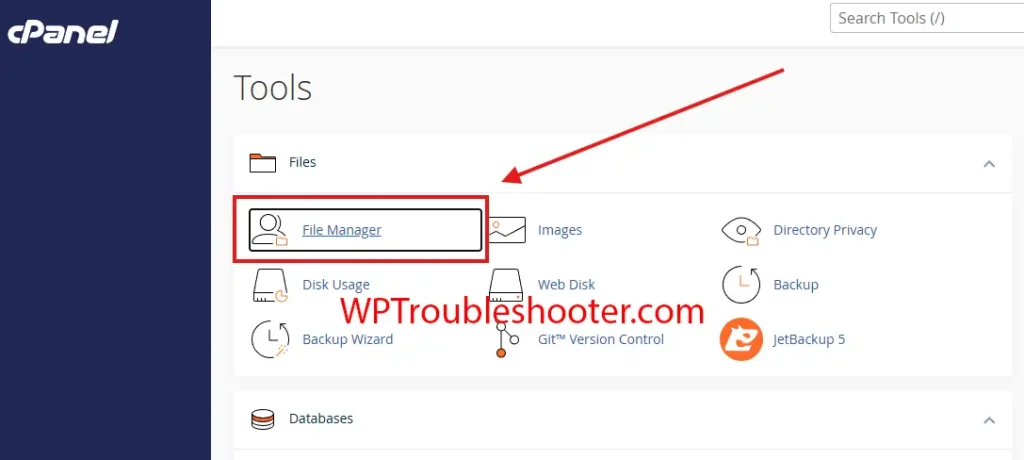
Step 1: Log In to Your Hosting Control Panel
Sign in to your hosting account or Control Panel.
Open File Manager. If your host doesn’t provide one, connect using an FTP client with your site’s credentials.
Step 2: Navigate to the File
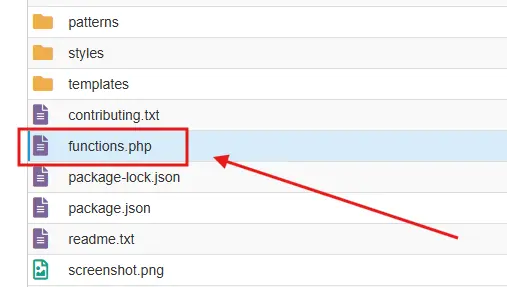
Follow the file path shown in the error message. For example, if the message references the following:
wp-content/themes/mytheme/functions.phpopen:
- Open
public_html - Then go to
wp-content - Find
themes - After that
mytheme(the theme you use) - Look for
functions.php
Right-click the file and choose Edit.
What should happen?
The file should open in the editor, ready for you to inspect the code near the line number reported in the error.
Solution 3: Inspect the Reported Line
Once you’ve opened the file, scroll to the line number mentioned in the error. Don’t focus only on that exact line. Also inspect the 10–15 lines before it.
Look for common mistakes such as the following:
- A missing semicolon (
;) - An extra or missing curly brace (
{or}) - An unmatched parenthesis (
(or)) - A missing quotation mark
- A function that was started but never closed
For example, this code is incorrect because it is missing a semicolon:
echo "Hello World"The correct version is:
echo "Hello World";Another common issue is forgetting to close a brace:
if ( is_user_logged_in() ) {
    echo "Welcome!";
Correct version:
if ( is_user_logged_in() ) {
    echo "Welcome!";
}
What should happen?
After correcting the mistake, save the file and refresh your website. If the parse error is gone, you’ve successfully repaired the problem.
If the error changes or points to another line, don’t panic; this often means you’ve fixed the first issue and PHP has now reached the next one.
Continue with the next solution if you’re still unable to identify the problem.
Solution 4: Undo Your Most Recent Code Changes
Why This Works
The majority of WordPress parse errors occur immediately after someone
- Adds a code snippet from a tutorial
- Edits
functions.php - Modifies
wp-config.php - Changes a plugin file
- Customizes a theme
If your website was working before you made the change, restoring the previous code is often the fastest solution.
Step 1: Think About What Changed
Ask yourself:
- Did you recently install a new plugin?
- Did you edit a theme file?
- Did you paste code from a blog or YouTube tutorial?
- Did you change your
wp-config.phpfile? - Did the error appear immediately after saving a file?
If the answer is yes, you’ve likely found the source of the problem.
Step 2: Restore the Original Code
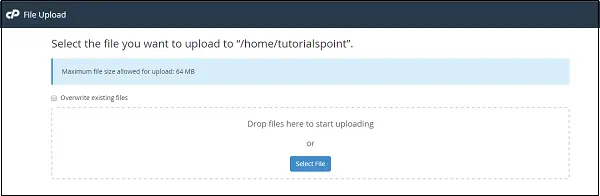
Open the affected file and remove the code you recently added or edited.
If you downloaded a backup of the file before making changes, upload the original version instead.
What should happen?
Save the file and refresh your website.
If the parse error disappears, the recent code change was responsible.
Support Engineer Note
If you’re experimenting with custom code, make only one change at a time. Test your site after each change so it’s easy to identify which edit caused the problem.
Solution 5: Replace a Corrupted Plugin or Theme
Why This Works
Sometimes the code itself isn’t your mistake. A plugin or theme update may have been interrupted, leaving a PHP file incomplete or corrupted.
Replacing the damaged files with a fresh copy often resolves the issue.
Step 1: Identify the Plugin or Theme
Look at the file path in the error message.
For example:
wp-content/plugins/the-plugin-name/includes/example.phpThis indicates the problem is inside the The Plugin Name plugin.
Or:
wp-content/themes/mytheme/functions.phpThis points to your active theme.
Step 2: Download a Fresh Copy
Download the latest version of the plugin or theme from its official source.
Avoid downloading from unofficial websites, as the files may be outdated or modified.
Step 3: Replace the Files
Using File Manager or FTP:
- Upload the fresh files.
- Overwrite the existing files.
- Keep your database unchanged.
What should happen?
Refresh/ Reload your website.
If corrupted files caused the parse error, the website should now load correctly.
Solution 6: Check Your PHP Version
Why This Works
Some plugins and themes use newer PHP features.
If your hosting account is running an older PHP version, valid code may produce parse errors because the server doesn’t recognize the newer syntax.
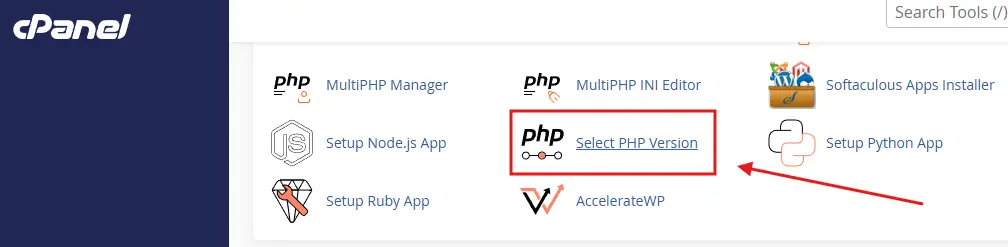
Step 1: Find Your Current PHP Version
Most hosting providers include a PHP Version or PHP Selector tool.
Open it and note the version currently in use.
Step 2: Compare Requirements
Visit the plugin or theme’s documentation.
Check whether it requires a newer PHP version than the one currently installed.
Step 3: Update PHP (If Appropriate)
If your hosting provider recommends upgrading and your WordPress installation is compatible:
- Create a backup.
- Change to the recommended PHP version.
- Save the changes.
- Test your website.
What should happen?
If PHP compatibility was the issue, the parse error should disappear.
Important: Never upgrade PHP on a production website without confirming that your themes and plugins support the new version.
Solution 7: Enable WordPress Debug Mode
Why This Works
Sometimes the visible parse error doesn’t tell the whole story.
Enabling WordPress Debug Mode creates detailed error logs that can help identify additional problems.
Follow our How to Enable WordPress Debug Mode guide for a complete walkthrough.
You should also check this out:
How to Enable WordPress Maintenance Mode
What should happen?
After enabling debug logging, review the debug.log file for more detailed information about the error.
When Should You Contact Your Hosting Provider?
If you’ve
- Corrected the reported code,
- Restored the original file,
- Replaced plugin or theme files,
- Verified your PHP version,
- Enabled Debug Mode,
And if the parse error still appears, it’s time to contact your hosting provider.
Tell them:
- The exact parse error message.
- The affected file.
- The line number.
- The troubleshooting steps you’ve already completed.
Providing this information helps support staff investigate more efficiently.
Common Parse Error Messages Explained
Here are some of the most common messages you may encounter:
| Error Message | Meaning |
|---|---|
unexpected T_STRING | PHP found unexpected text, often caused by missing punctuation or quotation marks. |
unexpected end of file | A function, brace, or parenthesis wasn’t properly closed. |
unexpected '}' | An extra closing brace was found. |
unexpected '(' | PHP encountered a parenthesis where it wasn’t expected. |
unexpected ';' | A semicolon appears in an invalid location. |
Remember that the reported line isn’t always where the mistake began. Check several lines above it as well.
Common Mistakes to Avoid
Avoid these common errors while troubleshooting:
- Editing the wrong file.
- Ignoring the line number in the error message.
- Making multiple code changes before testing.
- Copying code from outdated tutorials without checking compatibility.
- Using a word processor instead of a plain text or code editor.
- Forgetting to create a backup before editing files.
How to Prevent WordPress Parse Errors
You can significantly reduce the risk of parse errors by following these best practices:
- Back up your website before editing code.
- Test custom code on a staging site first.
- Copy code only from trusted, up-to-date sources.
- Use a code editor with PHP syntax highlighting.
- Keep WordPress, plugins, and themes updated.
- Remove unused plugins and themes.
- Verify PHP compatibility before installing new software.
Troubleshooting Checklist
Before moving on, confirm that you’ve completed the following:
☐ Read the full parse error message.
☐ Identified the affected file.
☐ Checked the reported line and nearby code.
☐ Corrected syntax mistakes.
☐ Restored the original file if necessary.
☐ Replaced corrupted plugin or theme files.
☐ Verified PHP compatibility.
☐ Enabled Debug Mode if additional information was needed.
☐ Tested the website after each change.
☐ Contacted your hosting provider if the issue remains unresolved.
Frequently Asked Questions
What is a WordPress Parse Error?
A parse error occurs when PHP finds invalid code that prevents it from interpreting a file correctly. Because WordPress relies on PHP, the affected page cannot load until the syntax error is corrected.
What usually causes a parse error?
Most parse errors are caused by manual code edits, incomplete plugin or theme updates, corrupted files, or PHP version incompatibilities.
Can a plugin cause a parse error?
Yes. A plugin containing invalid or incompatible PHP code can trigger a parse error, especially after an update or installation.
Will I lose my website if I get a parse error?
No. A parse error doesn’t delete your content or database. It simply prevents PHP from processing the affected file until the error is fixed.
Why does the error point to one line, but the mistake is somewhere else?
PHP reports the location where it detects the problem, not always where it started. That’s why it’s important to inspect several lines before the reported line number.
Related Guides
If you’re troubleshooting other WordPress problems, these articles may help:
- How to Fix the WordPress Critical Error
- How to Fix WordPress 403 Forbidden Error
- How to Fix the WordPress White Screen of Death
- How to Fix Error Establishing Database Connection
- How to Fix the WordPress 500 Internal Server Error
- How to Fix the WordPress Memory Exhausted Error
- How to Fix WordPress 404 Error After Permalink Change
The more you understand how WordPress and PHP work together, the easier it becomes to diagnose and fix future issues with confidence.
Conclusion
A WordPress Parse Error may seem intimidating at first, but it’s usually one of the most precise WordPress errors because PHP tells you which file and line number to inspect.
Start by reading the error message carefully, then examine the affected file, undo recent code changes, and verify that your plugins, themes, and PHP version are compatible. Test your website after each change so you know exactly which step resolved the issue.
If you’ve completed every solution in this guide and the error still persists, contact your hosting provider with the full error message and a summary of the troubleshooting you’ve already performed. That information will help them diagnose the issue more quickly.