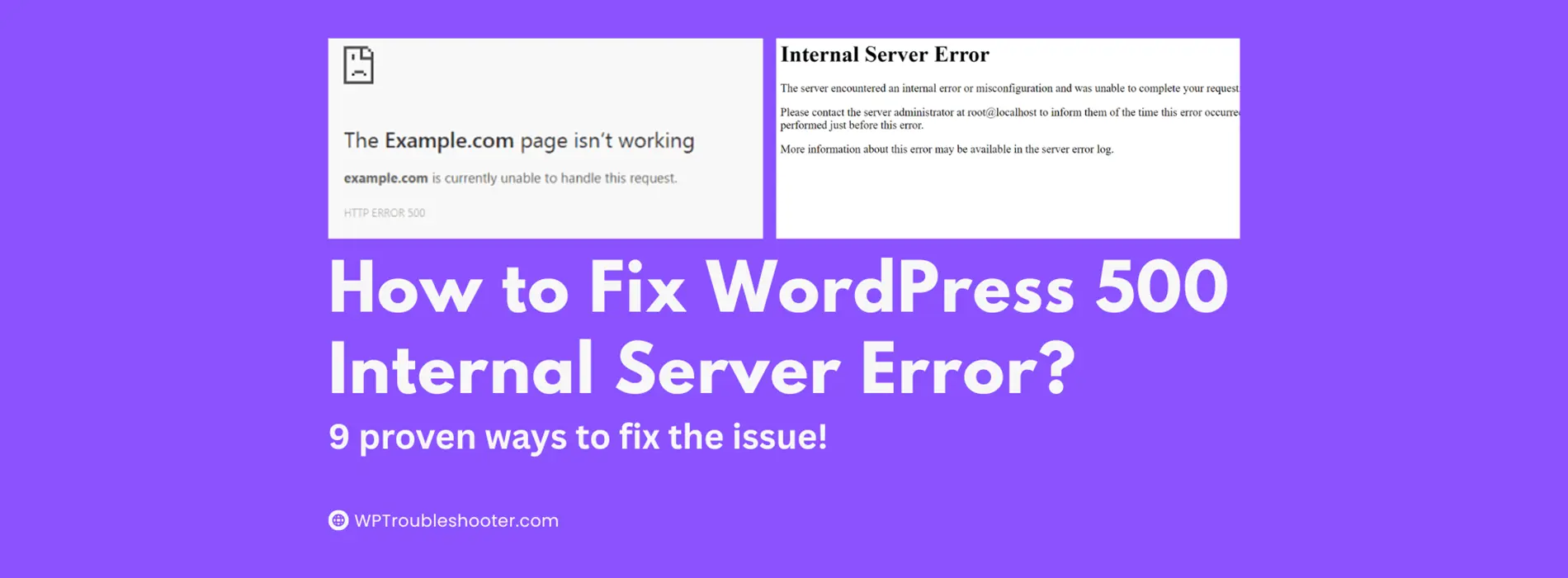

Seeing a “500 Internal Server Error” on your WordPress website can be frightening, especially if you don’t know what caused it.
One moment your site is working perfectly, and the next you’re staring at an error page that prevents visitors from accessing your content.
The good news is that the WordPress 500 Internal Server Error is usually fixable. In most cases, the problem is caused by a plugin conflict, corrupted .htaccess file, PHP memory exhaustion, incorrect file permissions, or a server-side issue.
In this beginner-friendly guide, we’ll walk you through each troubleshooting step in order so you can restore your website as quickly as possible.
What Is the WordPress 500 Internal Server Error?
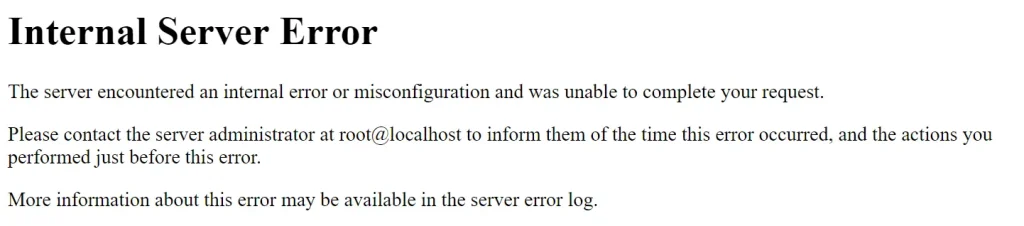
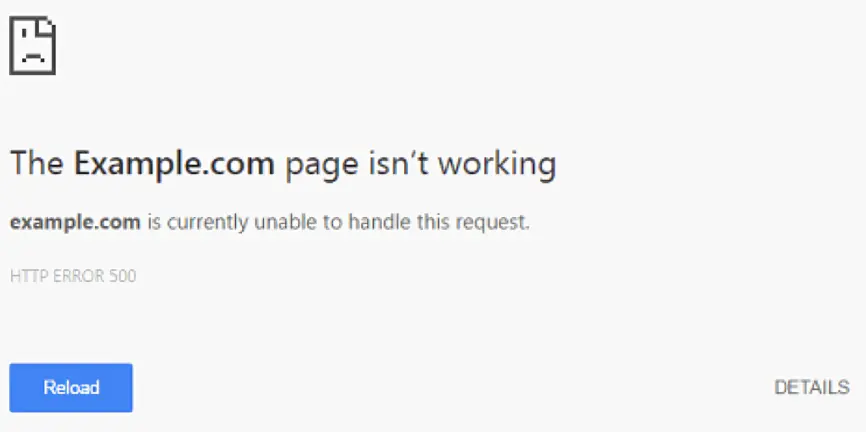
A 500 Internal Server Error is a generic server error.
Unlike some WordPress errors that clearly identify the problem, a 500 error simply means:
Internal Server Error
Something went wrong on the server, but the server cannot provide more details.
Depending on your hosting provider, you may see messages such as:
- 500 Internal Server Error
- HTTP Error 500
- Internal Server Error
- The website cannot display the page
Because the error is generic, troubleshooting requires testing several possible causes.
Before You Start
Before making any changes:
- Log in to your hosting account.
- Create a full website backup if possible.
- Open a text document and note every change you make.
This allows you to reverse any changes if necessary.
How to Fix WordPress 500 Internal Server Error?
Solution 1: Clear Your Browser and Website Cache
Sometimes the error has already been fixed, but your browser or caching system continues showing the old error page.
How to Clear Browser Cache
In Google Chrome: In a new tab
- Press Ctrl + Shift + Delete.
- Select “Cached Images and Files”.
- Click “Delete Data”.
Clear WordPress Cache
If you use a caching plugin such as the following:
- LiteSpeed Cache
- WP Rocket
- W3 Total Cache
Open the plugins’ dashboard then Clear all cached files.
Clear Cloudflare Cache
If you use Cloudflare:
- Log in to Cloudflare.
- Select your website.
- Open “Caching”.
- Click “Purge Everything”.
What Should Happen?
Refresh your website. If the site loads normally, the issue was cached content.
If the error remains, continue to the next step.
Solution 2: Disable All Plugins
Plugin conflicts are one of the most common causes of a 500 Internal Server Error.
If you can access WordPress Admin:
- Go to Plugins → Installed Plugins.
- Select all plugins.
- Choose “Deactivate”.
- Click Apply.
If you cannot access wp-admin:
Using cPanel File Manager
- Log in to cPanel.
- Open File Manager.
- Open the public_html folder.
- Navigate to:
wp-content- Find:
plugins- Rename it to:
plugins-disabledWhat Should Happen?
Visit your website.
If the website loads successfully, one of your plugins caused the error.
Rename the folder back to plugins and activate plugins one at a time until the error returns.
The last plugin activated is usually the culprit.
Solution 3: Regenerate the .htaccess File
A corrupted .htaccess file is another common cause.
Step 1: Locate .htaccess
In File Manager:
public_html/.htaccessIf you don’t see it, enable “Show Hidden Files.”
Step 2: Rename It
Rename:
.htaccessto:
.htaccess-oldStep 3: Test Your Website
Refresh your website.
What Should Happen?
If the site loads successfully, the .htaccess file was corrupted.
Create a New .htaccess File
Log into the WordPress dashboard as admin.
Go to:
Settings → Permalinks
Without changing anything:
Click “Save Changes.”
WordPress automatically creates a new .htaccess file.
Solution 4: Increase PHP Memory Limit
WordPress may run out of available memory during plugin execution or heavy processing.
Step 1: Open wp-config.php
Inside:
public_htmlfind:
wp-config.phpRight-click and choose Edit.
Step 2: Add This Code
Above:
/* That's all, stop editing! Happy publishing. */add:
define('WP_MEMORY_LIMIT', '256M');Step 3: Save the File
Refresh your website.
What Should Happen?
If memory exhaustion caused the issue, your site should begin loading normally.
Solution 5: Switch to a Default WordPress Theme
Theme conflicts occasionally trigger server errors. Follow the instructions below:
Using File Manager
Navigate to:
wp-content/themesRename your active theme folder.
Example: If you have OceanWP (oceanwp) or any other theme, rename it to oceanwp-old.
oceanwpbecomes:
oceanwp-disabledIf a default WordPress theme is installed, WordPress will automatically switch to it.
What Should Happen?
If the website loads, your theme is causing the error. Consider updating or replacing the theme. Most internal server errors happen for poorly coded theme!
Solution 6: Check File Permissions
Incorrect file permissions can prevent WordPress from accessing important files.
Recommended permissions:
Files:
644Folders:
755How to Check Permissions
In File Manager:
- Right-click a file.
- Choose Permissions.
- Verify the values.
What Should Happen?
Correcting permissions may immediately resolve the error.
Solution 7: Enable WordPress Debug Mode
Debug Mode reveals hidden PHP errors.
Open wp-config.php
Find:
define('WP_DEBUG', false);Replace with:
define('WP_DEBUG', true);
define('WP_DEBUG_LOG', true);
define('WP_DEBUG_DISPLAY', false);
Save the file.
WordPress will create:
wp-content/debug.logWhat Should Happen?
Open debug.log and review the latest entries.
You may discover:
- Plugin errors
- Theme errors
- Missing files
- PHP fatal errors
This information often identifies the exact cause.
Solution 8: Check Your Hosting Error Logs
Most hosting providers maintain server logs.
Common locations:
- cPanel → Errors
- cPanel → Metrics → Errors
- Hosting Dashboard Logs
Look for messages mentioning:
- PHP Fatal Error
- Memory Limit Exceeded
- Missing Include Files
- Permission Denied
These logs often provide more useful information than WordPress itself.
Solution 9: Contact Your Hosting Provider
If none of the previous solutions work, the problem may be server-side.
Examples include:
- Server outages
- Corrupted server configurations
- Resource restrictions
- PHP service failures
Contact support and provide:
- Website URL
- Time the error started
- Steps already attempted
This speeds up troubleshooting significantly.
Related WordPress Errors
The 500 Internal Server Error is often confused with other common WordPress issues.
If you’re seeing different symptoms, these guides may help:
- WordPress Critical Error Fix
- WordPress White Screen of Death
- Error Establishing Database Connection in WordPress
Although these errors appear similar, their causes and solutions can differ.
Frequently Asked Questions
Can a plugin cause a 500 Internal Server Error?
Yes. Plugin conflicts are one of the most common causes of this error.
Will deleting .htaccess break my website?
No. WordPress can generate a new .htaccess file automatically through the Permalinks settings page.
Can shared hosting cause 500 errors?
Yes. Resource limits, memory restrictions, and server issues on shared hosting can trigger this error.
Is the 500 Internal Server Error dangerous?
The error itself isn’t dangerous, but it can make your website inaccessible until the underlying issue is resolved.
Conclusion
The WordPress 500 Internal Server Error can be frustrating because it doesn’t clearly explain what’s wrong. However, most cases are caused by plugin conflicts or corrupted files such as .htaccess files, memory limitations, theme problems, or hosting issues.
Start with the simplest solutions first – clear caches, disable plugins, and regenerate your .htaccess file. Then move on to debugging, memory adjustments, and server logs if necessary.
By following the steps in this guide, most WordPress websites can be restored without losing any content or settings.