
Few WordPress errors are as confusing for beginners as the “Memory Exhausted Error”.
You may suddenly see a message similar to:
Fatal error: Allowed memory size exhaustedor
PHP Fatal Error: Allowed memory size of X bytes exhaustedWhen this happens, your website may stop loading completely, certain pages may become inaccessible, or WordPress may display a critical error message.
The good news is that this issue is usually easy to fix.
In this guide, you’ll learn what causes the WordPress Memory Exhausted Error and how to increase your PHP memory limit using several beginner-friendly methods.
What Is the WordPress Memory Exhausted Error?

WordPress runs on PHP, and PHP requires memory to execute code. Every hosting account has a memory limit that controls how much memory PHP scripts can use.
When WordPress, a plugin, or a theme tries to use more memory than allowed, PHP stops execution and displays a fatal error.
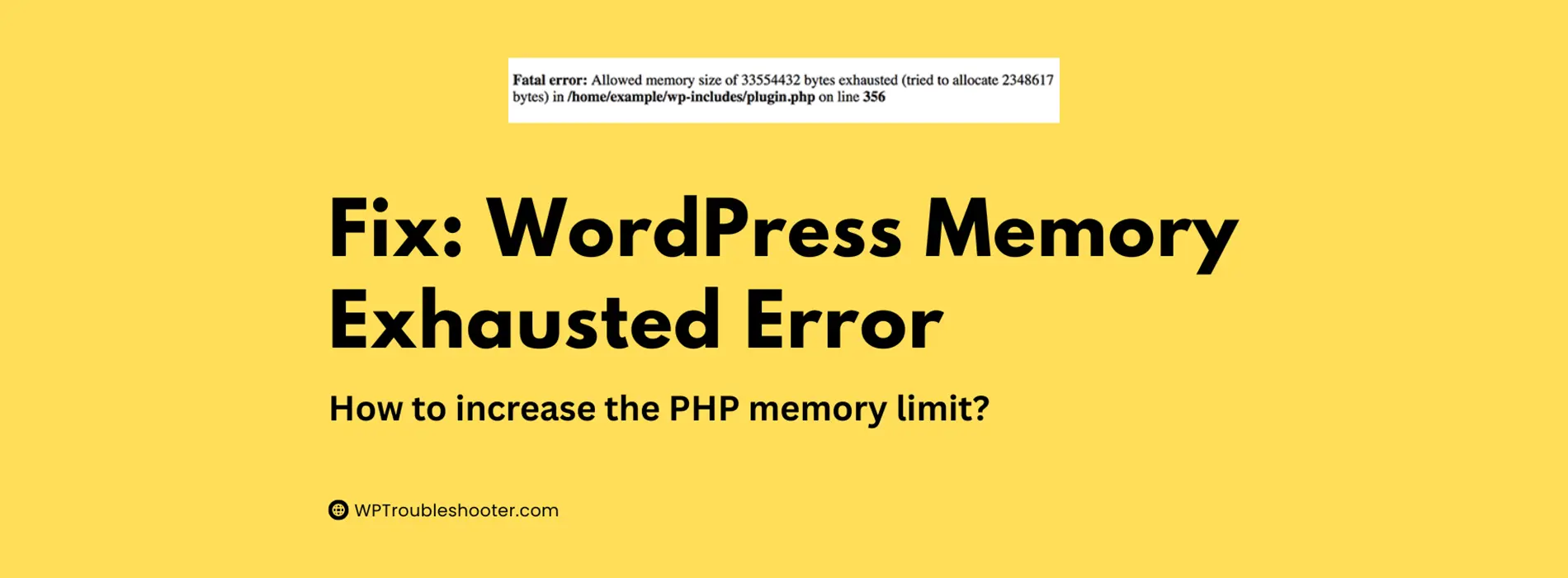
A typical error message looks like:
Fatal error: Allowed memory size of 33554432 bytes exhaustedThe number shown represents the memory limit configured on your server.
Common Causes of Memory Exhaustion
This error is often caused by:
- Poorly coded plugins
- Resource-heavy themes
- Large WooCommerce stores
- Image optimization processes
- Backup plugins
- Import/export tools
- Low hosting memory limits
- Plugin conflicts
In some cases, the memory issue is temporary.
In others, you may need to permanently increase your PHP memory limit.
How to Confirm a Memory Exhausted Error
Before making changes, confirm that memory exhaustion is actually the problem.
Look for messages such as the following:
Allowed memory size exhaustedAllowed memory size of 123456789 bytes exhaustedOut of memoryPHP Fatal ErrorYou may find these messages:
- On-screen
- Inside wp-content/debug.log
- Inside hosting error logs
If you’re seeing a generic critical error message, check our guide on WordPress Critical Error Fix for additional troubleshooting steps.
Solution 1: Increase Memory Limit in wp-config.php
This is usually the quickest solution.
Step 1: Log In to Your Hosting Account
Open your hosting control panel.
Depending on your provider, this may be:
- cPanel
- Hostinger hPanel
- DirectAdmin
- Plesk
Step 2: Open File Manager
Locate:
public_htmlThis is normally your WordPress root directory.
Step 3: Find wp-config.php
Inside public_html, locate:
wp-config.phpRight-click the file and choose Edit.
Step 4: Add the Memory Limit
Find this line:
/* That's all, stop editing! Happy publishing. */Immediately above it, add:
define('WP_MEMORY_LIMIT', '256M');The result should look like:
define('WP_MEMORY_LIMIT', '256M');

/* That's all, stop editing! Happy publishing. */
Step 5: Save the File
Click Save.
What Should Happen?
Refresh your website.
If the website loads correctly, you’ve successfully fixed the problem.
If the error remains, continue to the next solution.
Solution 2: Increase Memory Limit Through PHP Configuration
Some hosts ignore wp-config.php memory settings.
In that case, you may need to change PHP settings directly.
Using cPanel
- Log in to cPanel.
- Open the MultiPHP INI Editor.
- Select your domain.
- Locate:
memory_limit- Change it to:
256Mor
512M- Save changes.
What Should Happen?
Allow a few minutes for changes to take effect, then test your website again.
Solution 3: Increase Memory Limit Using .htaccess
If your host supports it, you can modify the .htaccess file.
Locate .htaccess
Inside:
public_htmlfind:
.htaccessIf hidden files aren’t visible, enable:
Show Hidden FilesAdd This Line
php_value memory_limit 256MSave the file.
What Should Happen?
Refresh your website.
If you receive a server error after editing .htaccess, remove the line immediately because your hosting provider may not support this method.
Solution 4: Disable Resource-Hungry Plugins
Some plugins consume excessive memory.
Common examples include:
- Backup plugins
- Security scanners
- Page builders
- Import/export tools
- Database optimization plugins
How to Disable Plugins
If you can access WordPress Admin:
- Go to Plugins → Installed Plugins.
- Deactivate all plugins.
- Test your website.
If you cannot access WordPress Admin:
- Open File Manager.
- Navigate to:
wp-content/plugins- Rename:
pluginsto:
plugins-disabledWhat Should Happen?
If the website starts working, a plugin is causing the memory issue.
Reactivate plugins individually until you identify the problematic one.
Solution 5: Switch to a Default Theme
Some themes require significantly more memory than others.
Disable Your Current Theme
Navigate to:
wp-content/themesRename your active theme folder.
For example:
astrabecomes:
astra-disabledIf a default WordPress theme is available, WordPress will activate it automatically.
What Should Happen?
If the website loads normally afterward, your theme is contributing to the memory issue.
Solution 6: Upgrade Your Hosting Plan
Sometimes the problem isn’t WordPress.
Shared hosting plans often impose strict memory limits.
Signs you may need better hosting include:
- Frequent memory errors
- Slow admin dashboard
- High CPU usage
- WooCommerce performance issues
If your site regularly hits memory limits, upgrading your hosting plan may be the most effective long-term solution.
Related WordPress Errors
Memory exhaustion often causes other WordPress issues.
If you’re seeing additional symptoms, these guides may help:
WordPress Critical Error Fix
Many critical errors are ultimately caused by PHP memory exhaustion.
WordPress White Screen of Death
A completely blank page often appears when PHP runs out of available memory.
WordPress 500 Internal Server Error
Some hosting environments display a 500 error instead of the memory exhaustion message.
Error Establishing Database Connection in WordPress
Although less common, overloaded servers can sometimes trigger both database and memory-related issues.
Frequently Asked Questions
What is a good PHP memory limit for WordPress?
For most websites:
- 128M = Small websites
- 256M = Recommended
- 512M = WooCommerce or large websites
Can a plugin cause memory exhaustion?
Yes. Poorly optimized plugins are one of the most common causes.
Is increasing the memory limit safe?
Yes, provided your hosting plan supports it.
Will increasing memory limit fix all memory errors?
Not always.
If a plugin has a memory leak or your server lacks resources, the underlying issue may still need to be addressed.
Conclusion
The WordPress Memory Exhausted Error occurs when PHP runs out of available memory while executing WordPress code.
In most cases, increasing the PHP memory limit solves the problem quickly. If not, investigate plugins, themes, hosting resources, and server configurations.
Start with the simplest solutions first and test your website after each change. This makes it easier to identify the exact cause and avoid unnecessary troubleshooting.