
The WordPress 403 Forbidden Error is one of the most confusing errors website owners encounter.
Instead of loading your website or dashboard, WordPress displays a message such as:
- 403 Forbidden
- Access Denied
- Forbidden
- You don’t have permission to access this resource
In many cases, the error appears suddenly after installing a plugin, changing website settings, updating WordPress, or modifying server files.
Fortunately, the 403 Forbidden Error is usually easy to fix once you identify the cause.
In this beginner-friendly guide, you’ll learn exactly what causes the error and how to fix it step by step.
What Is a 403 Forbidden Error?
A 403 Forbidden Error means your web server understands the request but refuses to grant access.
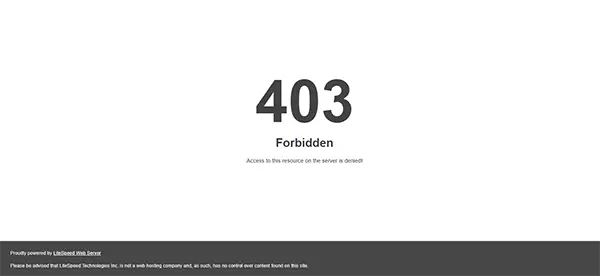
In simple terms: Your website exists. Your server is running. But the server is blocking access to a file, folder, page, or resource. Unlike a 404 error, the page isn’t missing. The server is intentionally preventing access.
Common Causes of the 403 Error
The most common causes include:
- Incorrect file permissions
- Corrupted .htaccess files
- Security plugins blocking access
- CDN or firewall restrictions
- Malware infections
- Incorrect ownership settings
- Hosting configuration problems
Let’s work through each solution in order.
Before You Start
Before making changes:
- Log into your hosting account.
- Create a backup if possible.
- Write down every change you make.
If something doesn’t work, you’ll be able to reverse it easily. We recommend taking backup before you make any changes. You can do it from your hosting panel or control panel.
Solution 1: Check Whether the Error Affects the Entire Website
First, determine how widespread the issue is.
Try accessing:
- Homepage
- Blog posts
- wp-admin
- wp-login.php
What Should Happen?
You may discover:
- Entire website blocked
- Only wp-admin blocked
- Only certain pages blocked
This information helps narrow down the cause.
Solution 2: Regenerate the .htaccess File
A corrupted .htaccess file is one of the most common causes of 403 errors.
Step 1: Open File Manager
Log into:
- cPanel
- Hostinger hPanel
- DirectAdmin
- Plesk
Open File Manager.
Navigate to:
public_html
Step 2: Find the .htaccess File
Locate:
.htaccess
If you can’t see it:
Enable:
Show Hidden Files
Step 3: Rename the File
Rename:
.htaccess
to:
.htaccess-old
Step 4: Test the Website
Refresh your website. You should visit your website in a guest profile or incognito mode on your browser.
What Should Happen?
If the website works normally, the .htaccess file was corrupted. And your website will be fixed!
Create a New .htaccess File
If you can access WordPress:
- Go to Settings → Permalinks
- Click Save Changes
WordPress automatically generates a fresh .htaccess file. It’s not a viable fix, as you must have access to your WordPress dashboard, which is less likely.
Solution 3: Check File Permissions
Incorrect permissions often trigger 403 errors. Review and change the file permission in your web server root.
Recommended WordPress Permissions
Folders:
755
Files:
644
How to Check Permissions
Using File Manager:
- Right-click a folder.
- Select Permissions.
- Verify values.
Important WordPress folders include:
- wp-admin
- wp-content
- wp-includes
What Should Happen?
After correcting permissions, refresh the website. The error may disappear immediately. If not, move to the next step.
Solution 4: Disable Security Plugins
Security plugins sometimes block legitimate visitors.
Common examples:
- Wordfence
- Solid Security
- All In One Security
- Sucuri Security
If You Can Access ‘wp-admin’
Deactivate security plugins temporarily.
If You Cannot Access wp-admin
Navigate to:
wp-content/plugins
Rename:
plugins
to:
plugins-disabled
What Should Happen?
If the website loads normally afterwards, one of the plugins is causing the issue. Rename the folder back to ‘plugins’ again.
Then reactivate plugins one by one through the WordPress dashboard until the error shows up again.
Solution 5: Clear CDN and Firewall Rules
If you’re using:
- Cloudflare
- Sucuri Firewall
- Hosting Firewall
A security rule may be blocking access.
Cloudflare Users
- Log into Cloudflare.
- Open Security > Events.
- Review recent blocks.
- Whitelist your IP address if it’s blocked.
What Should Happen?
After removing the restriction, access should be restored. Also, clear the cache if you use any caching plugin.
Solution 6: Scan for Malware
Some hosting providers automatically block infected websites.
Signs include:
- Unexpected redirects
- New administrator accounts
- Strange files appearing
- Security warnings
Use:
- Wordfence Scan
- Sucuri SiteCheck
- Hosting malware scanner
What Should Happen?
If malware is detected and removed, the 403 error may disappear automatically. You may also contact your hosting provider to fix the issue for you.
Solution 7: Verify File Ownership
On VPS and dedicated servers, file ownership issues can trigger access errors.
Typical ownership settings:
www-data:www-dataor
apache:apachedepending on your server.
When Should You Check This?
If the error appeared after:
- Website migration
- Server migration
- Manual file uploads
- VPS configuration changes
Contact your hosting provider if you’re unsure. Most hosting companies provide site migration services; you should take advantage of it.
Solution 8: Contact Your Hosting Provider
If none of the previous solutions work, your hosting provider should investigate.
Provide:
- Website URL
- Exact error message
- Steps already attempted
- Approximate time the issue started
This helps support teams identify the issue faster. Most hosting companies provide this service for free.
Frequently Asked Questions
What causes a 403 Forbidden Error in WordPress?
Most commonly:
- Incorrect permissions
- Corrupted .htaccess files
- Security plugin restrictions
- Firewall rules
Can a plugin cause a 403 error?
Yes. Security plugins frequently block legitimate requests by mistake.
Will deleting .htaccess break WordPress?
No. WordPress can automatically generate a new one through the Permalinks settings page.
Is the 403 Forbidden Error dangerous?
The error itself isn’t dangerous, but it can prevent visitors and administrators from accessing important parts of your website.
Related WordPress Errors
The 403 Forbidden Error is often confused with several other WordPress problems.
WordPress Critical Error Fix
A plugin conflict can sometimes trigger either a critical error or a 403 error.
WordPress White Screen of Death
Fatal PHP errors may result in a blank white page instead of an access denied message.
WordPress 500 Internal Server Error
Server configuration issues often cause both 500 and 403 errors.
WordPress Memory Exhausted Error
Resource limitations occasionally trigger permission-related issues.
Error Establishing Database Connection in WordPress
Database failures can produce similar symptoms when WordPress cannot load pages correctly.
Conclusion
The WordPress 403 Forbidden Error occurs when your server refuses access to a file, page, or resource.
Most cases are caused by corrupted .htaccess files, incorrect permissions, security plugins, or firewall rules.
Start by regenerating your .htaccess file and checking permissions. Then investigate plugins, CDN settings, and server configurations if necessary.
Following the steps in this guide should help you restore access to your WordPress website quickly and safely.