
Seeing the message “Error Establishing Database Connection” on your WordPress website can be alarming. Instead of loading your website, WordPress displays a simple error page and prevents visitors from accessing your content.
The good news is that this error is usually caused by incorrect database settings, a corrupted database, hosting issues, or overloaded servers. In most cases, it can be fixed without losing any website data.
In this guide, you’ll learn the most effective ways to diagnose and fix the Error Establishing Database Connection in WordPress.
What Does “Error Establishing Database Connection” Mean?

WordPress stores most of its content and settings inside a MySQL or MariaDB database.
Whenever someone visits your website, WordPress connects to the database and retrieves:
- Posts
- Pages
- Settings
- User information
- Plugin data
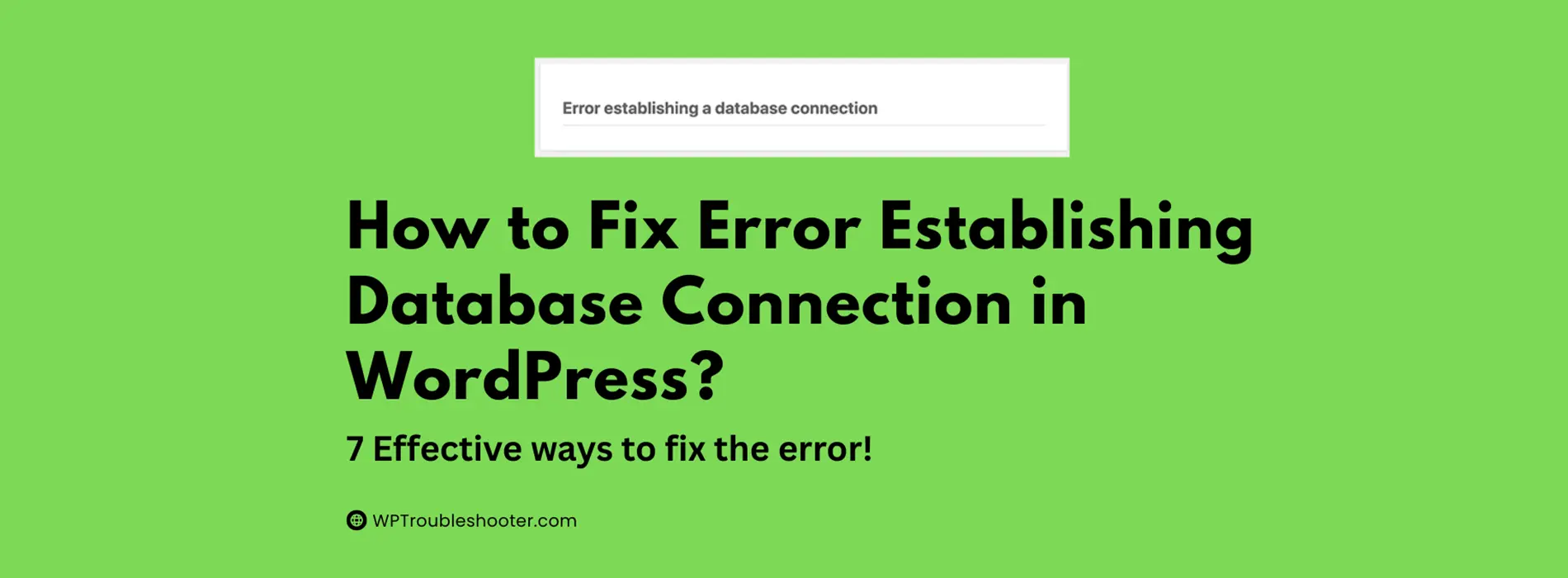
If WordPress cannot connect to the database, it cannot load the website and displays the following:
Error Establishing Database Connection
This error may cause a WordPress critical error, also known as the WordPress white screen of death!
Common Causes of Database Connection Errors
The most common reasons include:
- Incorrect database credentials
- Corrupted database tables
- Database server outages
- Overloaded hosting resources
- Corrupted WordPress files
- Database server configuration issues
Let’s go through each solution step by step.
How to Fix Error Establishing Database Connection in WordPress?
Fix 1: Verify Database Credentials in wp-config.php
Incorrect database information is one of the most common causes of this error. To fix it, go to your website’s file manager > public_html
Find and Open:
wp-config.phpLocate these lines:
define('DB_NAME', 'database_name');
define('DB_USER', 'database_user');
define('DB_PASSWORD', 'database_password');
define('DB_HOST', 'localhost');
Verify that all values match the database details that you got during WordPress installation or provided by your hosting provider. Make sure your database name, user, and password match.
Even a small typo can prevent WordPress from connecting. Always double check credentials.
Fix 2: Check Whether Your Database Server Is Running
Sometimes the problem isn’t WordPress at all.
Your database server may be:
- Offline
- Overloaded
- Under maintenance
Contact your hosting provider or check your hosting status page.
If multiple websites on the same server are experiencing issues, the host may already be working on a fix.
Fix 3: Repair the WordPress Database
Corrupted database tables can trigger connection errors. First, go to your website’s file manager > public_html:
Open & Edit:
wp-config.phpAdd this line at the bottom:
define('WP_ALLOW_REPAIR', true);Save the file.
Visit:
https://yourdomain.com/wp-admin/maint/repair.phpChoose these options:
- Repair Database
- Repair and Optimize Database
After the process finishes, remove the line from wp-config.php for security reasons.
Fix 4: Check If Your Database Has Reached Resource Limits
Many shared hosting plans place limits on Database connections, CPU usage, Memory usage, etc.
If your website experiences traffic spikes, the database may temporarily stop accepting connections.
Signs include:
- Random database errors
- Slow loading pages
- Hosting resource warnings
Review your hosting resource usage panel for clues. If you find the resources have reached their limit, upgrade your hosting plan or contact your hosting customer service!
Fix 5: Test Database Connection Manually
Create a test PHP file:
<?php
$link = mysqli_connect('localhost', 'username', 'password');

if (!$link) {
    die('Connection Failed');
}

echo 'Connected Successfully';
?>
Replace the values with your database credentials. It will show you the error on your website homepage.
If the connection fails, the problem likely lies with your hosting configuration or database server rather than WordPress itself.
Fix 6: Restore a Recent Backup
If the error appeared immediately after:
- A migration
- A plugin installation
- A theme update
- Manual database changes
Restoring a recent backup may be the fastest solution. You can also just undo what you did on your website, as mentioned above.
Good backup plugins include the following:
- UpdraftPlus
- Solid Backups
- BlogVault
Or you can use any other plugin you like. Always keep regular backups before making major changes.
Fix 7: Reupload Core WordPress Files
Corrupted WordPress files can occasionally interfere with database connections. Fixing those may help in your case.
Download a fresh copy of WordPress. You need to have access to your website file manager via the cPanel or the service you’re using.
Replace:
/wp-admin/
/wp-includes/
Do not overwrite:
wp-content
wp-config.php
This refreshes WordPress core files while preserving your content.
How to Prevent Database Connection Errors
To reduce the risk of future issues, you should follow these:
- Keep WordPress updated
- Use reliable hosting
- Monitor resource usage
- Create regular backups
- Avoid unnecessary database modifications
- Remove unused plugins
A well-maintained WordPress installation is far less likely to encounter database problems.
Frequently Asked Questions
Can I lose my website data from this error?
Usually no. Most database connection errors are caused by configuration issues rather than actual data loss.
Can a plugin cause a database connection error?
Indirectly, yes. Some poorly coded plugins can overload the database or modify database settings incorrectly.
How do I know if my database is corrupted?
You may see additional errors, missing content, or database repair warnings inside WordPress dashboard.
Should I contact my hosting provider?
Yes. If you’ve verified your credentials and the error persists, your hosting provider can often identify server-side issues quickly. You can always ask your hosting customer service to fix the issue for you.
Conclusion
The “Error Establishing Database Connection” message usually indicates that WordPress cannot communicate with its database.
Start by verifying database credentials, checking server status, and repairing database tables. If those steps don’t resolve the issue, investigate hosting resource limits and corrupted files.
In most cases, the problem can be fixed quickly without losing any website data.